

It’s widely recognized that Google’s AI Overviews release has significantly impacted the publishing industry. This isn’t simply another “Featured Snippet”—it’s a fundamental shift in how Google approaches search.
Many users are dissatisfied with this change and want to return to the traditional search experience. Here’s how you can do that.
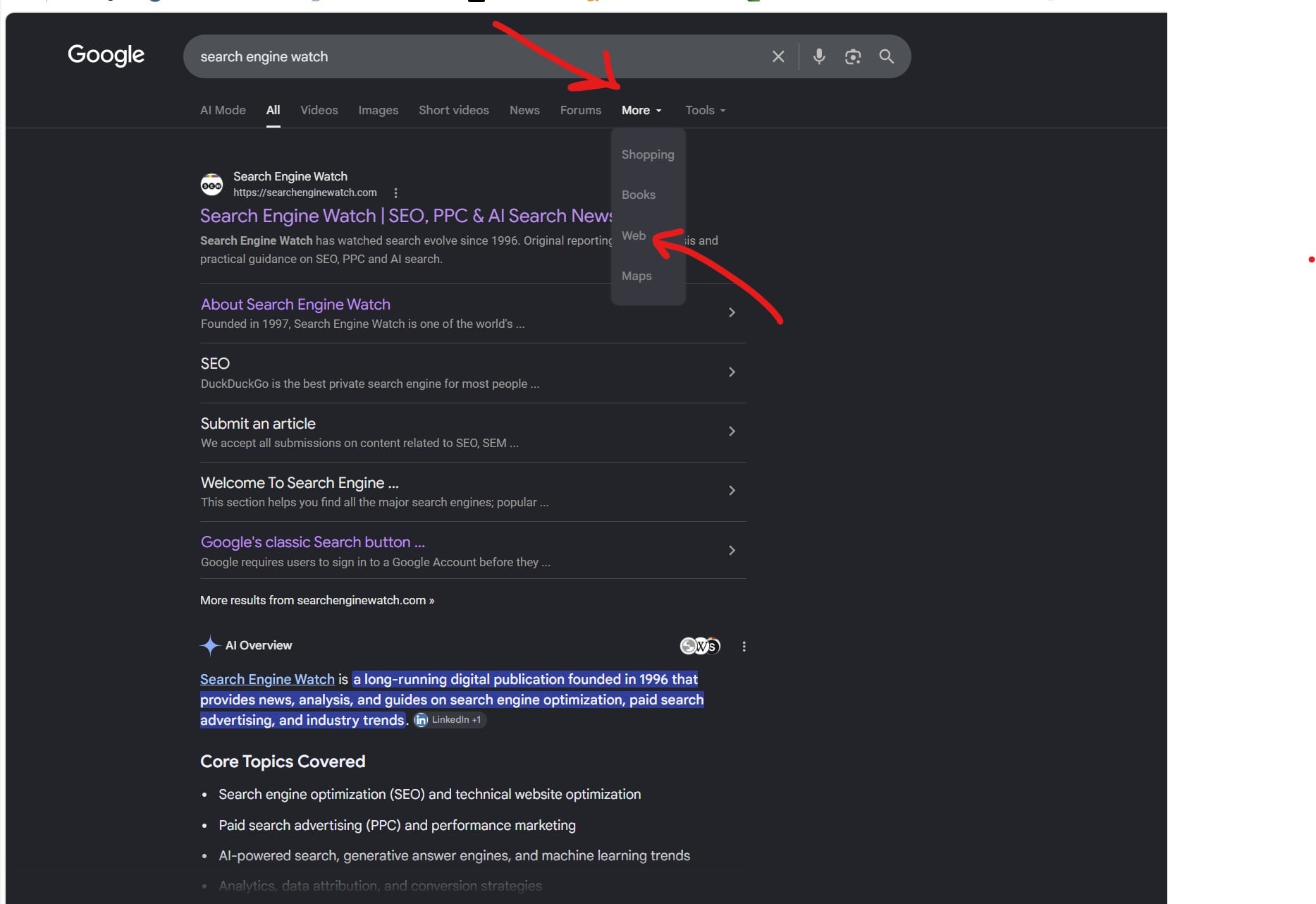
Google does not offer a setting that permanently disables AI Overviews. Its own help page calls them a core Search feature. The fastest fix is to choose Web below the search box. The more durable workaround is to make Google’s Web view your default search engine with a URL ending in &udm=14. That bypasses AI Overviews on every address-bar search.
You cannot switch off AI Overviews at Google-account level, but you can stop them appearing in the searches you perform through your browser.
- For one search: Select Web under the Google search box. If it is not visible, open More or All filters.
- For every desktop search: Add
https://www.google.com/search?q=%s&udm=14as a custom search engine and make it your default. - To keep Google’s normal “All” page but remove only the AI box: Use a browser extension that hides AI Overviews.
- In the Google app or Safari: There is no native permanent switch. Use the Web filter for each search, change browser, or change search engine.
Google’s position is unusually clear: AI Overviews are a core Search feature and cannot be turned off. Google points people to the Web filter when they want a page of text-based links instead.
The quickest fix on any device: select Web

Run your search as usual, then look at the row of filters below the search box. Select Web. Google will reload the query as a link-focused results page without the standard AI Overview.
If Web is missing, it is usually not actually unavailable. Google changes the order of its filters according to the query.
- On desktop, select More at the end of the filter row, then select Web.
- On a phone, swipe the filter row sideways or open All filters.
- If you have opted into Google’s Web Guide experiment and see AI-organised groups instead, choose Classic Search or turn that experiment off in Search Labs.
Google describes the Web filter as a view containing text-based links to websites. It is a proper Google result type, not a third-party copy of the search page.
This is the safest method because it is visible in Google’s interface and does not require an extension. Its weakness is obvious after the third or fourth search: Google does not remember the choice as a universal account preference.
How to make Google Web your default on a computer
The practical long-term workaround is to create a custom search engine using this address:
https://www.google.com/search?q=%s&udm=14The %s is the space where your browser inserts the query. The udm=14 parameter asks Google for its Web result type.
This does not hack or modify Google. It simply makes the browser open the same result view that Google loads when you select Web. The parameter itself is not formally documented for consumers, so Google could change it. That is why the visible Web filter remains the fallback worth remembering.
You also have a useful choice during setup:
- Make Google Web the default if you nearly always want link-focused results.
- Keep it as an address-bar shortcut if you want to move between standard Google and Web-only Google.
Chrome on Windows, macOS, Linux and ChromeOS
- Paste
chrome://settings/searchEnginesinto Chrome’s address bar and press Enter. - Find Site search and select Add.
- Enter the following:
- Search engine:
Google Web - Shortcut:
@web - URL with %s in place of query:
https://www.google.com/search?q=%s&udm=14
- Search engine:
- Select Add.
- Open the three-dot menu beside Google Web and select Make default.
- Search from the address bar and confirm that Web is selected on the result page.
Chrome’s own documentation confirms that a custom site search can be added and set as the default search engine.
If you want it only sometimes, do not make it the default. Type @web, press Space or Tab, and then type the query. Standard Google will remain available for searches where you want Maps, shopping panels, images or other rich results.
Firefox on Windows, macOS and Linux
Firefox 140 and later can add a custom search engine directly from Settings, which makes this cleaner than many older guides suggest.
- Open the Firefox menu and select Settings.
- Select Search.
- Scroll to Search Shortcuts or Additional search engines, depending on the Firefox version.
- Select Add or Add search engine.
- Name it
Google Web. - Use
https://www.google.com/search?q=%s&udm=14as the URL. - Add an optional keyword such as
@web, then save it. - Choose Google Web under Default Search Engine if you want it used for every address-bar search.
Mozilla documents both the custom URL field and the required %s query placeholder.
Microsoft Edge on Windows and macOS
- Open Edge Settings.
- Go to Privacy, search, and services > Search and connected services > Address bar and search.
- Open Manage search engines or Search engines.
- Add a search engine with these values:
- Name:
Google Web - Shortcut:
@web - URL:
https://www.google.com/search?q=%s&udm=14
- Name:
- Open the menu beside the new entry and make it the default.
- Set Search on new tabs uses search box or address bar to Address bar. Otherwise, Edge’s New Tab search box may continue sending queries to Bing even after the address-bar default has changed.
Microsoft’s support page confirms that Edge lets users change the search engine used in the address bar. The additional New Tab setting is the easily missed part.
How to remove AI Overviews on Android and iPhone
Mobile is where many guides become misleading. The Google app, Chrome, Firefox and Safari do not share one search setting. A fix in Chrome will not change the Google app’s search box, and a setting on your computer should not be assumed to apply to your phone.
Chrome on Android
Chrome for Android lets you choose a recently visited OpenSearch provider, but it does not provide the same custom URL form as desktop Chrome. One established workaround is TenBlueLinks.org, an open-source page that advertises Google’s Web view to the browser as a search provider.
- Visit
tenbluelinks.orgin Chrome. - Open a new tab and perform any search.
- Open Chrome’s three-dot menu and select Settings.
- Select Search engine.
- Under Recently visited, select Google Web.
- Search from Chrome’s address bar and check that Google opens in the Web view.
Chrome may show TenBlueLinks as the source of the search-engine definition. According to the project’s published configuration, the finished searches are sent directly to Google with udm=14; they are not search-result pages hosted by TenBlueLinks. The project is still a third-party helper, so readers who do not want to rely on it should use Firefox’s native custom search option below.
Google confirms that Chrome for Android adds recently visited search engines as selectable options.
Chrome on iPhone and iPad
The process is nearly identical:
- Visit
tenbluelinks.orgin Chrome. - Open a new tab and perform a search.
- Tap the three-dot menu, then Settings > Search engine.
- Select Google Web under Recently visited.
Google’s current iOS documentation also says that Chrome adds recently visited search engines to this list.
Firefox on Android
Firefox for Android has the cleanest native mobile setup because it accepts a custom search URL.
- Tap the search-engine icon inside the address bar.
- Open Search settings.
- Select Default search engine > Add search engine.
- Enter
Google Webas the name. - Enter
https://www.google.com/search?q=%s&udm=14as the search string URL. - Save it and choose it as the default.
These steps and the %s format are documented by Mozilla Support.
Safari on iPhone, iPad or Mac
Safari lets you choose from Apple’s supported search engines, but it does not provide a native field for a custom Google URL template. That leaves three realistic options:
- Select Web after each Google search.
- Use a browser that supports the custom Google Web setup.
- Choose another default search engine in the device’s Search or Safari settings.
Changing Safari Suggestions, private browsing, history or search-engine suggestions does not disable Google’s AI Overview. Those are Apple interface and privacy controls, not controls for the Google results page.
The Google app and the Android Google search widget
There is no setting that makes the Google app or its home-screen search widget use Web results by default. Select Web for the current query, or run searches through a browser whose default engine you have changed.
Turning off an AI experiment in Search Labs may remove that experiment, but it does not switch off the AI Overviews that Google serves as part of ordinary Search.
—
If you want a search provider that gives you a genuine AI toggle, Google is no longer the strongest choice. DuckDuckGo and Brave let users control their AI summaries, while Startpage can provide mainstream-style results without Google AI Overviews. We compared those trade-offs in our guide to the best Google alternatives.
Start the conversation by posting the first comment