

For a new blog or business site, start with Twenty Twenty-Five if you’re comfortable building with WordPress’s own blocks. You can change your article layouts, header and footer without buying a premium edition. Blocksy is the better fit when you’d prefer to choose and adjust prepared layouts through a settings panel.
GeneratePress suits a more conventional blog with a main menu and optional sidebars. All three have ongoing free versions, so you can build the site before deciding whether extra design controls deserve a subscription. Hosting and your domain are separate costs.
| Theme | Choose it for | Free version includes | Main trade-off |
|---|---|---|---|
| Twenty Twenty-Five | A new site built with WordPress blocks | Editable site templates, headers and footers; blog and page patterns | You’ll work in the Site Editor and take responsibility for the layout. |
| Blocksy | A business site or blog you want to customise through settings | Header and footer builders, sticky header, blog layouts and page-level controls | Conditional headers and the custom template system require Pro. |
| GeneratePress | A straightforward blog with conventional layout controls | Typography, colours, navigation and sidebar settings | The visual Block Elements system requires GP Premium. |
This shortlist is based on current documentation and free-versus-paid feature checks, reviewed on September 21, 2026. We haven’t run a controlled speed comparison or measured ranking changes. The order reflects different editing needs.
1. Twenty Twenty-Five: best for editing your whole site for free
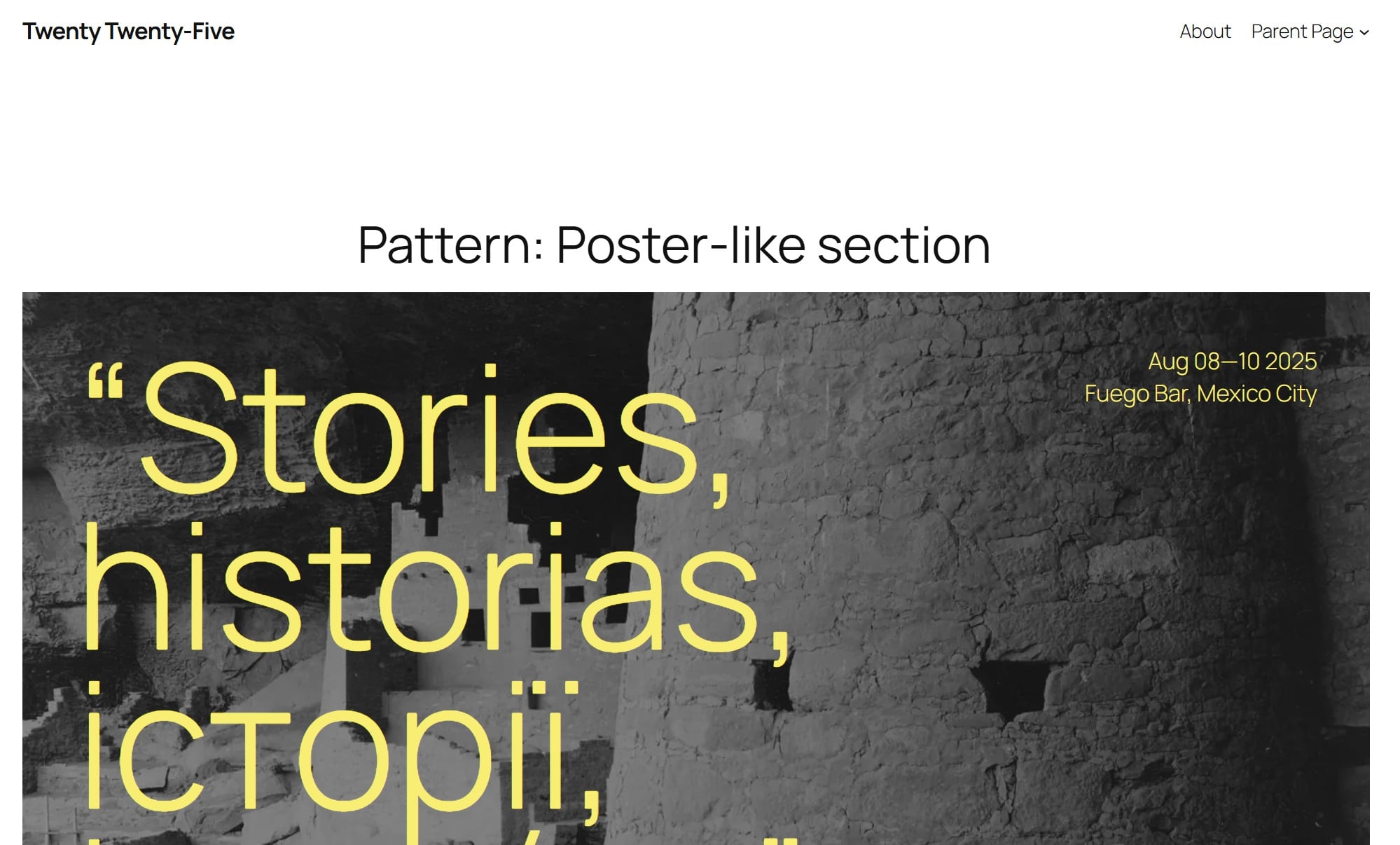
Twenty Twenty-Five deserves a look before you buy a theme builder. It’s a community-developed WordPress theme, and the year in its name doesn’t mean it has been abandoned: the theme directory lists version 1.5, updated in May 2026.
Its main advantage is that WordPress’s Site Editor lets you change the layouts around your content. You can edit a header once and apply it across the pages using that header, or change the template that displays your articles. There’s no separate premium edition to unlock those controls.
Suppose your company publishes guides alongside its service pages. You want a short “Start here” introduction above the article feed, followed by links to three useful guides. You can build that into the template with ordinary WordPress blocks. The same approach lets you rearrange the article title, author information and content without editing each post separately.
There’s one default worth changing for many sites. The personal blog layout displays entire posts in the feed. That can become unwieldy when you publish long guides. The theme also has text-only, photo and news blog designs; look at the news layouts if you want visitors to browse a selection of articles before opening one.
The trade-off is the editing process. You’re arranging blocks and working with shared templates, so a change can affect several pages at once. Someone who wants to select a layout, adjust a few settings and get back to writing may prefer Blocksy.
2. Blocksy: best for adjusting layouts through settings
Blocksy puts a useful amount of control into its free version. Its feature comparison includes header and footer builders, a transparent header and a sticky header in the free column. You can organise the navigation around your business without immediately buying an upgrade.
You write posts with WordPress blocks, while most theme settings live under Appearance → Customise. There are controls for the overall layout, typography and sidebars, plus overrides for individual pages and posts. For example, a service page can use a different content layout from the articles in your blog.
The blog controls are a particular reason to choose it. You can select a simple list, grid or other archive layout, then adjust the article cards. An archive is a page that lists posts, such as your blog index or a category page. Showing clear titles, summaries and useful links there gives readers a way into your older work.
That also gives Blocksy a concrete advantage over Astra for this job. Astra’s comparison table puts post-grid controls and masonry layouts in Pro, although basic post structure and content-width controls are free. Blocksy already includes several archive layouts in its free theme. For a business building an article library, that distinction is more useful than another “SEO optimised” badge.
Blocksy’s limit appears when you want to build an entirely custom archive or article template, or show different headers on selected pages. Those belong to its Pro system. The published Personal plan is $69 a year for one site and includes those features. A standard business site and blog can use the free layouts without that purchase.
3. GeneratePress: best for a straightforward blog setup
GeneratePress makes sense when you want familiar controls around your writing: a menu, readable typography and a sidebar where it helps. The free theme includes colour, typography and navigation controls, and works with WordPress’s block editor for your page content.
Its sidebar settings show the sort of practical flexibility you get. You can choose layouts separately for the site overall, the blog and archives, and individual posts. A page can override the general setting. That means a service page can have no sidebar while your blog keeps a list of topics beside the articles.
The free version covers that setup. For custom sections managed through the block editor and display rules, GeneratePress offers Block Elements through GP Premium.
Block Elements let you create sections with the block editor and control where they appear. Imagine a box linking to your main beginner guides, placed after articles in one category and excluded from the rest of the site. The location and exclusion rules give you a way to manage that placement centrally.
For that job, the relevant purchase is GP Premium, listed at $59 a year. The $149-a-year GeneratePress One bundle adds other products; the Block Elements documentation recommends the free GenerateBlocks plugin for building those sections.
This upgrade makes the most sense for a site already using GeneratePress that needs more control. For a fresh build where editing shared templates is the priority, Twenty Twenty-Five already provides that workflow for free.
What makes a WordPress theme good for SEO?
A theme affects how your content is presented and contributes to the code and resources a browser loads. It can give visitors clear navigation, readable articles and a layout that works on a phone. Those are useful qualities to assess on the pages you intend to publish.
Google says Core Web Vitals are used by its ranking systems, but good scores don’t guarantee top rankings. That’s why a theme demo scoring 100 in a performance test isn’t enough to decide this question. Your site will have different images, plugins, scripts and content.
Navigation deserves as much attention as the homepage design. Google recommends crawlable links with descriptive text, and every important page should have a link from another page on the site. Keep your service pages and main categories easy to reach, then add relevant links within the articles themselves. Our internal-linking guide explains that editorial work in more detail.
The purchase price tells you little about any of this. For a small site with five company pages and 20 articles, all three free themes cover the basic publishing job. The decision changes when you specify the layouts you need: shared templates built from blocks, ready-made archive designs, or conventional posts with sidebars.
Before switching, compare the pages people actually visit
Make a backup and test the replacement on a copy of your site. Our guide to changing WordPress themes safely explains the staging approach. Keep the content, plugins and hosting environment the same while you compare the themes.
| Page to compare | What to check |
|---|---|
| Your homepage or main service page | Does the mobile menu work? Are the important links easy to find? Does a large banner push the useful content too far down? |
| A long article that receives search traffic | Check the title, headings, author information, images and internal links. Look for content that disappears or becomes difficult to read after the switch. |
| A category archive with several pages of posts | Can readers open the listed articles and reach older posts? Check the summaries, pagination and links, including on a phone. |
For the performance comparison, Lighthouse in Chrome DevTools can audit a protected staging page. Run it before and after the theme change with the same device settings, and repeat the runs so you don’t base the decision on one unusually good result. Inspect the reported causes of slow loading as well as the score.
On public pages, PageSpeed Insights adds real visitor data where enough is available. That data covers the previous 28 days and may describe the whole site rather than the individual page. It won’t immediately isolate the effect of a theme you activated this morning.
Keep your existing page addresses and SEO configuration intact during the comparison. A redesign shouldn’t quietly remove an important navigation link, change a canonical URL or hide content that brought people to the page.
Already using Astra, Kadence or another theme that handles these pages well? This comparison gives you no ranking-based reason to replace it. If the audit points to a large image or a third-party script as the bottleneck, fix that first and measure again before committing to a theme change.
Start the conversation by posting the first comment