


Meta tags are small pieces of HTML that describe a page or set rules for how other systems handle it. You usually meet them in the SEO panel beneath a draft, where a description box and a search preview make the job look fairly straightforward. Nearby settings can also decide whether the page is allowed to appear in Google at all.
As you prepare your site for 2027, concentrate on a descriptive page title, a useful meta description and indexing settings that match what you want visitors to find. It also helps to understand which fields offer Google wording to consider and which impose a restriction. Google can choose a different description; a noindex rule tells it to exclude the page once it has crawled and processed that rule.
The examples below follow a fictional coffee-machine repair business, so you can see how the choices fit together. The guidance reflects documentation checked in October 2026.
What meta tags look like inside a page
A typical page has a <head> containing metadata and a <body> containing the material visitors read. A meta description in the head looks like this:
<meta name="description" content="Repairs for home espresso machines in Leeds. Check accepted brands, inspection fees and Saturday drop-off times.">
The name identifies the kind of information, and content holds its value. Here, the site is supplying a description for other systems to consider. The text doesn’t become an introductory paragraph on the page.
You’ll often hear the page title called a “meta title,” especially in SEO software. Its HTML is a separate <title> element. A canonical URL uses a <link> element, while the visible main heading usually uses an <h1> in the body. They belong in the same conversation because you maintain them together, but recognizing the different elements makes the source code much easier to read. MDN’s HTML reference explains the distinction.
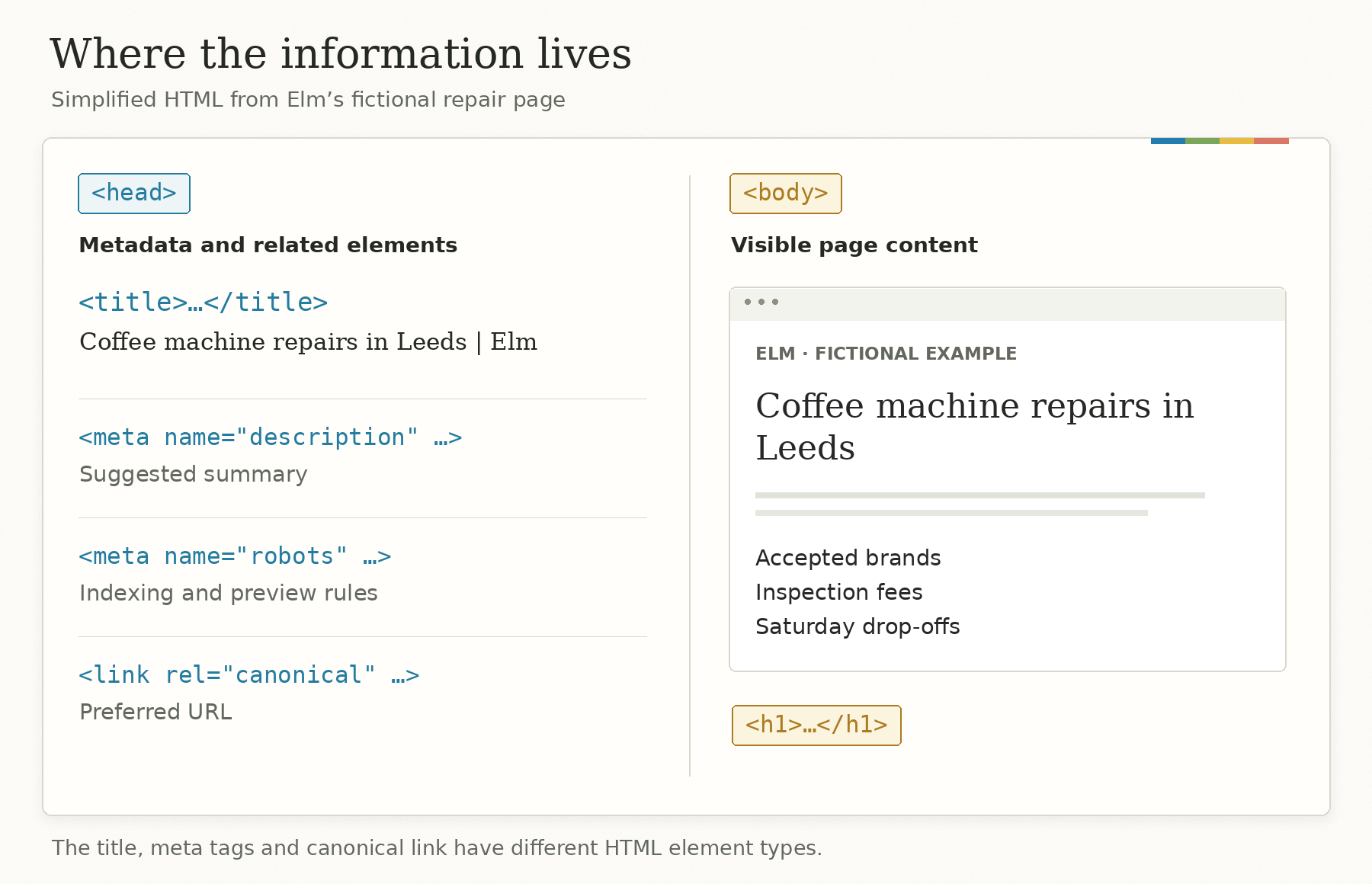
Imagine our fictional business is called Elm. Its repair page has a visible heading, “Coffee machine repairs in Leeds,” followed by accepted brands, inspection fees and drop-off arrangements. Those details give the title and description something specific to describe.
Which tags deserve your attention?
For a typical business website or publication, start with the elements below. They cover different jobs, so an SEO audit should explain what a problem affects rather than treat every missing field as equally urgent.
| Element or setting | Its main job | What you maintain |
|---|---|---|
<title> |
Names the page and supplies one source for Google’s result title | A specific, accurate title for that page |
| Meta description | Supplies a possible search-result description | A useful summary that matches the content |
| Robots meta tag | Sets indexing and preview restrictions | Deliberate rules, especially any noindex |
| Open Graph tags | Describe a page for services using Open Graph | A representative title, description, image and URL |
viewport |
Helps the browser size the page on different screens | A correct setting in the site template |
charset |
Declares the text encoding | A correct encoding declaration, normally UTF-8 |
Canonical <link> |
Signals the preferred URL among duplicate or very similar pages | A relevant, consistent destination |
| Meta keywords | Google ignores this field for indexing and ranking | No keyword list needed for Google SEO |
Google maintains its own list of supported meta tags. It’s a better reference for unfamiliar settings than a plugin’s score or an old checklist.
How Google chooses a title for your page
Your <title> gives Google a proposed name for the page. Google’s result title, which it calls the title link, can also draw on the main heading, other prominent text, links pointing to the page and og:title. Keeping those sources consistent gives Google a clearer account of what the page contains. Google’s title-link documentation lists the inputs.
For Elm’s repair page, this would be a fairly unhelpful title:
<title>Services | Elm</title>
It leaves someone looking through several results to work out what services Elm provides. A more useful version names the service and location:
<title>Coffee machine repairs in Leeds | Elm</title>
The visible heading can use “Coffee machine repairs in Leeds” without the brand suffix. Both versions describe the same page. If the page only accepts home espresso machines, its wording should also make that scope clear before a café owner spends time making an unsuitable enquiry.
Put the distinguishing information early enough to survive a shortened display. Google specifies no fixed character limit for the title element; the displayed title can be cut to fit the available space. A plugin’s length recommendation is useful editing feedback, but you can still read the title and decide whether the important words are doing their job.
How Google chooses the description under a result
Google usually builds search snippets from the page’s content and sometimes uses the meta description when it provides a better summary. The snippet can change with the search query. That explains why a carefully written description may appear for one search and be replaced with a passage from the page for another. Google’s snippet guide describes that process.
Suppose Elm’s page contains these two sentences:
We repair home espresso machines in Leeds. You can check accepted brands and inspection fees before arranging a visit.
Saturday drop-offs run from 10am to 2pm. Please contact the workshop before bringing your machine.
For a broad search such as “coffee machine repairs Leeds,” the meta description gives a useful overview. For “Saturday coffee machine drop-off Leeds,” the opening hours in the body answer the immediate question more directly. An illustrative snippet for the second search could therefore use the Saturday passage.
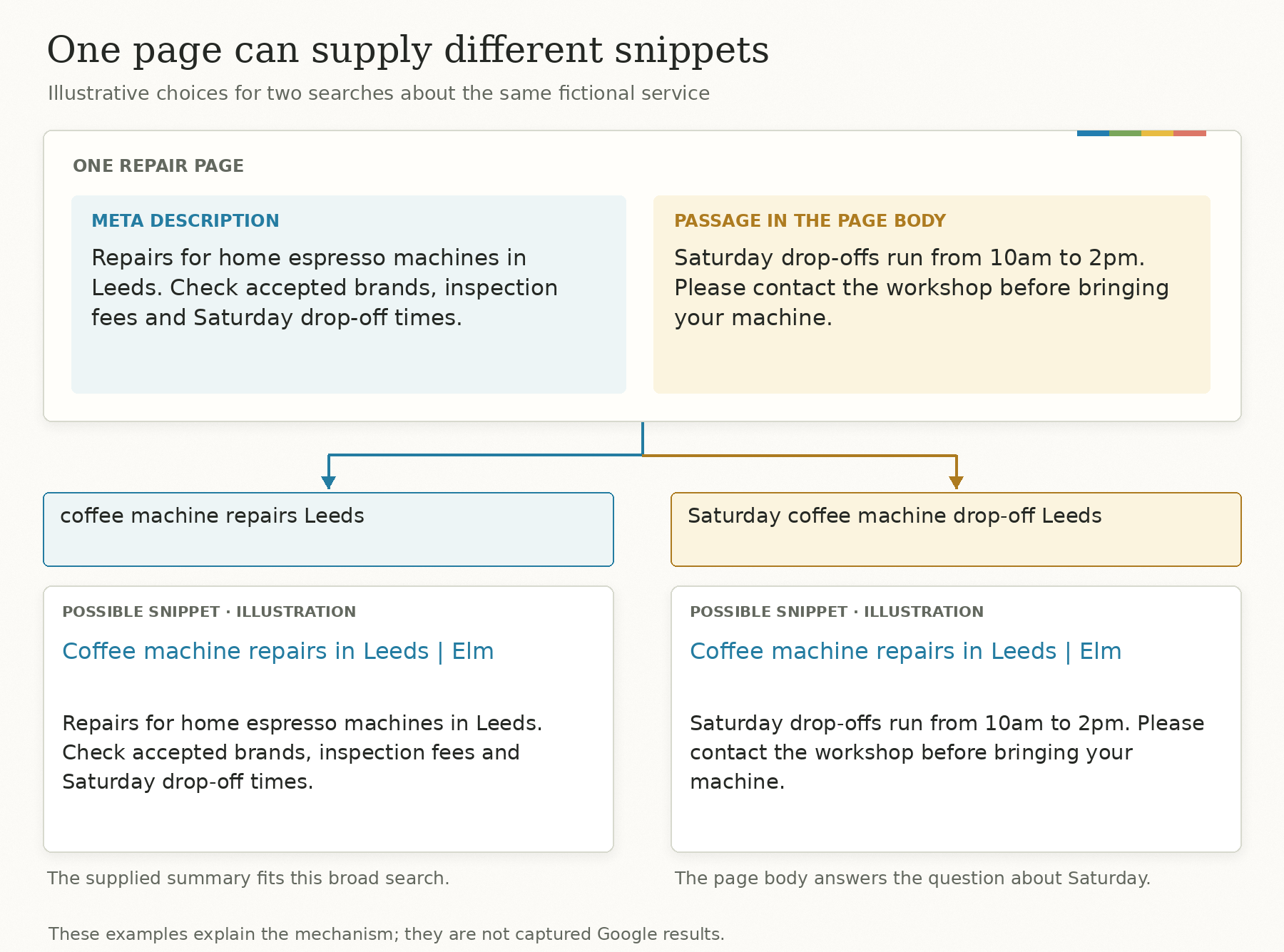
You can see why editing the description repeatedly would miss the point here. The page already contains a more relevant answer to the second query. Keep that practical information clear in the body, where visitors also need it.
When writing the description, choose the details that help a person decide whether to open the page. Elm’s location, accepted machines and arrangements are more useful than “Welcome to our website, where quality and customer satisfaction come first.” For a product page, the useful details might be the model, size or compatibility; for a tutorial, they might be the task and the software it covers.
Google sets no fixed maximum length for a meta description, although the displayed snippet is shortened as needed. Write a concise summary with its useful information near the beginning. Google has also stated that it doesn’t use the meta description in ranking, so assess the field as a way to describe the result to prospective visitors.
When a robots setting keeps a page out of Google
The robots meta tag is where a small change can alter whether a page appears in search. For example:
<meta name="robots" content="noindex">
This tells supporting search crawlers to exclude the page from their results. Google needs to access the page and process the instruction first. Its noindex documentation explains both the rule and the access requirement.
Elm might reasonably use noindex on a public confirmation page that says an enquiry has been received. That page serves someone who has already completed a form, whereas the repair service page is intended to attract people looking for help. Copying the confirmation page’s indexing setting onto the service page would work against that purpose.
For an ordinary public page, the default is index, follow; you don’t have to write those values explicitly. They leave indexing and link-following unrestricted by that tag, while Google still decides what to crawl, index and show.
Why blocking crawling can stop Google seeing noindex
Google reads a robots meta tag after fetching the page. If a robots.txt rule blocks that fetch, Google can’t read the noindex inside it. A URL can consequently remain in results even though the page contains the instruction you wanted Google to follow.
If your intention is exclusion from Google Search, allow Google to fetch the page and read its noindex rule. If the material is confidential, use access controls such as password protection, as Google explains in its content-sharing guidance. Anyone with the URL may still visit a public noindexed page.
How preview settings affect Google’s AI answers
Google requires a page to be indexed and eligible for a search snippet before it can qualify as a supporting link in AI Overviews or AI Mode. Google’s AI-features guidance sets out that requirement. A snippet restriction can therefore affect more than the descriptive text beneath a conventional result.
| Page setting | Google Search listing | Text snippet | Supporting link in AI Overviews or AI Mode |
|---|---|---|---|
| No indexing or snippet restriction | Eligible | Eligible | Eligible |
noindex |
Excluded | Unavailable | Ineligible |
nosnippet |
May still appear | Suppressed | Ineligible |
These are simplified eligibility examples for an accessible page after Google processes the setting. Other requirements still apply, and an eligible page may never be selected.
nosnippet also prevents the page’s content being used as a direct input for AI Overviews and AI Mode. max-snippet:120 caps the text allowance at 120 characters and limits direct input to those features, subject to separately granted uses. Google documents these controls in its robots specifications.
For Elm, suppressing snippets across the repair page would remove the useful description of its service as well as affect AI eligibility. The confirmation page presents a different choice because Elm wants that page excluded from Search altogether.
You can also exclude a particular passage from snippets using data-nosnippet on a supported HTML element:
<div data-nosnippet>
  Existing customers: use the booking link in your confirmation email.
</div>
The passage stays visible on the page. This can be useful when a public instruction for existing customers would make a poor preview for prospective ones.
For sites preparing for 2027, Google’s generative AI optimization guide says appearing in its AI search features requires no special AI markup. Check the existing indexing and preview rules before adding unfamiliar fields. These particular rules describe Google Search; they shouldn’t be treated as universal controls for AI services or model training. SEW’s guide to AI citations explains how the supporting links themselves work.
What Open Graph tags do for a shared page
Open Graph provides metadata that other services can use to represent your page when someone shares or references it. Its original specification defines properties including og:title, og:type, og:image and og:url, with og:description supplying an optional summary.
For Elm, those fields should lead to the repair page, describe that service and supply a representative image. A social preview showing a photograph of its workshop would make more sense than one showing an unrelated image left over from the theme’s demo content.
Keep Open Graph wording aligned with the page and its HTML title. Google lists og:title among the sources it may use for title links, so an old social headline can remain relevant after you have updated the SEO title field.
For publishers, the image has another possible use: Google’s Discover guidance says og:image can influence its choice of thumbnail. The same guidance recommends relevant large images at least 1,200 pixels wide, enabled through max-image-preview:large or AMP. That setting permits a large preview; the article still has to be selected for Discover.
Where canonical, viewport and charset fit
A canonical link tells Google which URL you prefer among duplicate or very similar pages. If Elm’s repair page is available at a clean URL and a parameterized version, both can point to the preferred clean address:
<link rel="canonical" href="https://example.com/coffee-machine-repairs/">
Google treats canonical annotations as a strong signal when choosing a representative URL. Its canonicalization guidance recommends them for this purpose rather than using noindex to choose between duplicates on the same site. Keep the destination relevant to the page whose alternative version it represents.
The viewport setting helps browsers handle page width and scaling:
<meta name="viewport" content="width=device-width, initial-scale=1.0">
You would normally maintain this in the site template. The responsive layout still needs to fit the screen; MDN’s viewport documentation explains how the setting works with that layout.
The charset declaration identifies the text encoding:
<meta charset="utf-8">
For modern HTML, use UTF-8 and place the declaration early in the head. If characters appear garbled, investigate the encoding and the response rather than rewriting descriptions. MDN documents the declaration and its placement within the first 1,024 bytes.
Putting the tags together on one page
Here is a simplified head for Elm’s fictional repair page. The example.com addresses and image filename are teaching placeholders. The page is intended to be discoverable, so it carries no noindex or snippet restriction, and it allows large image previews.
<head>
  <meta charset="utf-8">
  <meta name="viewport" content="width=device-width, initial-scale=1.0">

  <title>Coffee machine repairs in Leeds | Elm</title>
  <meta name="description" content="Repairs for home espresso machines in Leeds. Check accepted brands, inspection fees and Saturday drop-off times.">
  <meta name="robots" content="max-image-preview:large">

  <link rel="canonical" href="https://example.com/coffee-machine-repairs/">

  <meta property="og:type" content="website">
  <meta property="og:title" content="Coffee machine repairs in Leeds | Elm">
  <meta property="og:description" content="Check accepted machines, inspection fees and Saturday drop-off arrangements at Elm's Leeds workshop.">
  <meta property="og:url" content="https://example.com/coffee-machine-repairs/">
  <meta property="og:image" content="https://example.com/images/elm-workshop.jpg">
</head>
On a CMS such as WordPress, your theme or SEO plugin will usually generate these elements from fields and templates. Edit the system responsible for an existing element so you don’t add another title, description or conflicting robots setting alongside it. SEW’s guide to AI SEO WordPress plugins looks at tools for maintaining metadata when the backlog grows; you can still write and review the wording yourself.
How to check the tags your site is sending
Check the published URL after saving a change. The fields in your editor show what you entered, while the delivered HTML shows what the site is sending to visitors and crawlers.
Open the page’s source and find its <head>. Look for the actual <title>, the description, robots rules, canonical URL and Open Graph values. If JavaScript changes the page, also inspect the rendered HTML. Multiple versions of the same field are a reason to investigate the theme, plugin or template producing them.
Indexing rules can also arrive in the HTTP response, which you can inspect in your browser’s Network panel. Consider this combination:
X-Robots-Tag: noindex
<meta name="robots" content="index, follow">
For Google, the restrictive noindex still applies. Adding the permissive tag to the HTML won’t cancel the response header. Investigate where the header is set and remove it if the page is meant to be indexed. The robots specifications explain combined rules and HTTP headers.
Then use Search Console’s URL Inspection tool to compare Google’s indexed information with a live test of the page. Check whether crawling and indexing are allowed. The live test helps you inspect the current response, but it doesn’t resolve every indexing issue or establish which canonical Google will select.
For the wording, compare the title, description and visible page content as a reader would. If the title promises repairs for commercial machines and the page accepts only home models, correct that mismatch before shortening a sentence to satisfy a preview bar.
Start with a page you actively want people to find, then check another page using the same template. If both repair pages carry the same unwanted indexing rule, investigate the shared template before editing the rest of the pages individually.
Start the conversation by posting the first comment