


On paper, going headless is a front-end project. Your developers pick a framework, the designers get a cleaner build, and content editors keep working in a CMS. What tends to get lost in the planning meetings is that the CMS no longer builds the pages. It just stores content and hands it over through an API, and a separate front end (Next.js, Nuxt, Astro, take your pick) decides what HTML Google actually sees.
So all the SEO plumbing your old CMS handled in the background has to be rebuilt by hand. Title tags. Canonicals. Redirects, sitemaps, robots rules, schema. Nobody notices it is missing until the traffic graph starts sliding.
This guide covers the checks that matter on a headless migration, what the Google documentation says about each one, and a checklist at the end for developers to work through before launch.
Why headless migrations go wrong more often than regular replatforms
With WordPress, one system stores the content and prints the page, and a plugin like Yoast quietly fills in the SEO bits. Nobody writes any code for it.
Headless breaks that into separate pieces. Think about what has to happen for one meta description to reach Google:
- an editor types it into a field in the CMS
- the API has to include that field when the front end asks for the page
- the front end has to actually put it in the head
If any of those three is skipped, the description is just gone, and there is no error message telling you so. Now add new URLs, a new host and redesigned templates all going live the same morning. It is really four migrations wearing one name.
Headless CMS Migration Checklist
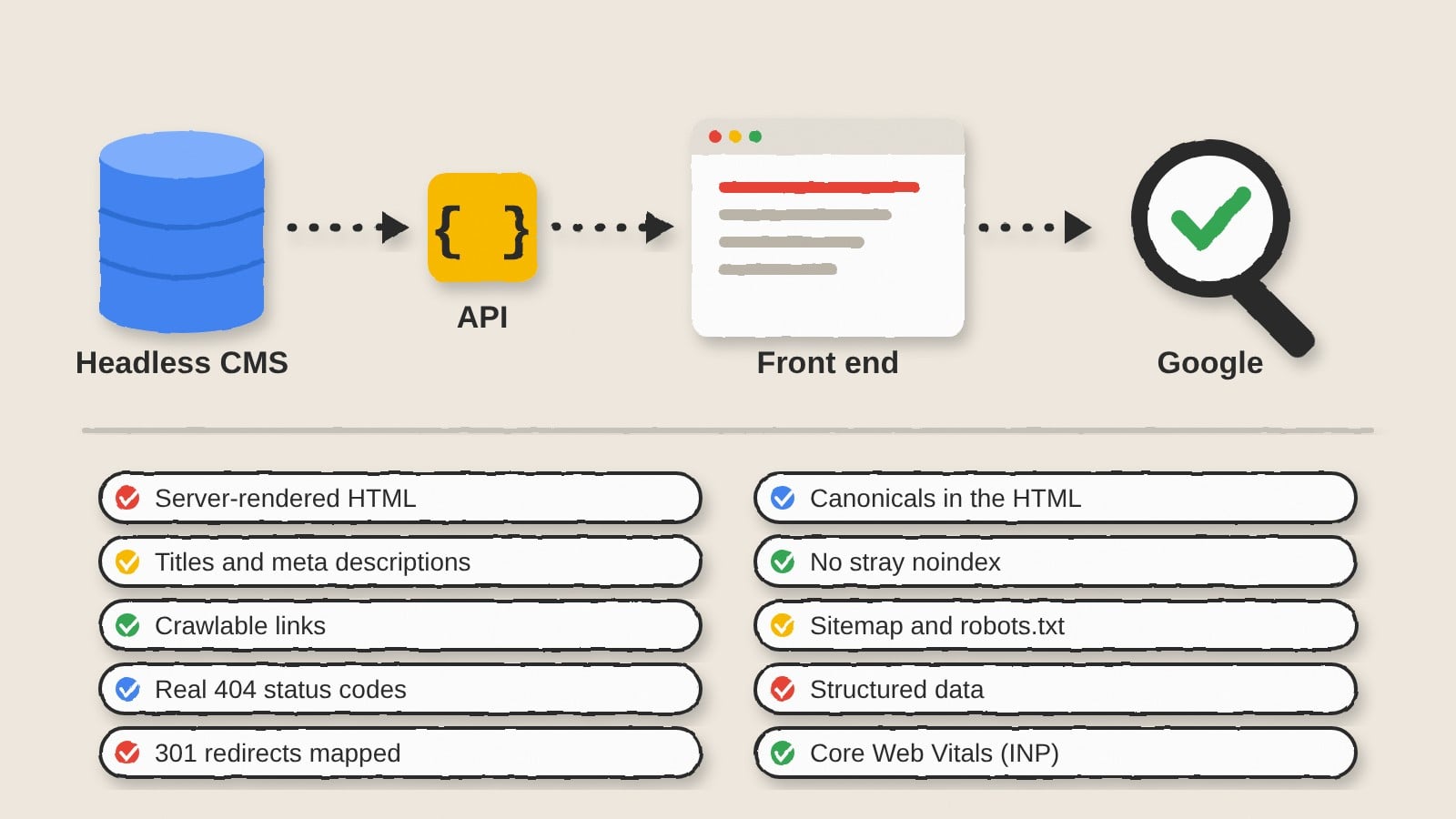
Make sure Google gets real HTML, not an empty shell
Google deals with JavaScript pages in three stages: it crawls them, renders them, then indexes them. Rendering does not happen straight away. Pages wait in a queue, which Google says is often a few seconds but can be longer.
That matters if your new front end builds everything in the browser, because the first HTML Google downloads might be close to empty. Google still recommends server-side rendering or pre-rendering. Faster pages are one reason. The other is that plenty of bots do not run JavaScript at all, and these days that includes a lot of the AI crawlers and link-preview bots hitting your site.
You may remember dynamic rendering, where bots got a pre-rendered copy and people got the JavaScript version. The Google documentation now calls it a workaround and says it is not recommended. Server-side rendering, static rendering or hydration are what it points to instead.
Every page that should be indexed needs to be rendered on the server or at build time. Client-side rendering is fine for the interactive stuff (filters, carts, account dashboards). And before anyone signs off, someone should open view source, not the browser inspector, and check that the main content, headings and links are sitting in the raw HTML.
Get titles, descriptions and Open Graph tags out of the CMS and into the head
This one catches a lot of teams. The SEO title and meta description fields exist in the CMS, editors fill them in, and the front end simply never reads them. Every page goes live with the same fallback title and nobody spots it for weeks.
If you are on Next.js with the App Router, metadata comes from either a static metadata object or the generateMetadata function, which can fetch a title and description for each page. Both only work in Server Components.
There is a wrinkle with dynamically rendered pages. Next.js streams the metadata in once generateMetadata finishes, rather than holding up the page. For bots that expect metadata in the head (Bingbot and Twitterbot are two examples), streaming is switched off, and you can change which bots get that treatment with the htmlLimitedBots setting.
Whatever framework you end up on, pick a few templates and check them yourself. Does each page have its own title and description in the server HTML? Are the Open Graph tags there, so a link shared on LinkedIn still shows a preview card? Can an editor change those fields without opening a ticket with the dev team? This guide on how to use meta tags for SEO goes through which tags are still worth the effort.
Keep links crawlable
JavaScript frameworks make it very easy to build a menu out of buttons with click handlers. Looks identical to a visitor. Google, though, only follows links that are proper a elements with an href. A button that fires a router function is a dead end as far as Googlebot is concerned.
Fragment URLs are a similar trap. Google advises using the History API for client-side routing, because Googlebot cannot reliably resolve addresses like /products#shoes. If your old site used those, give them real paths.
A quick way to catch this before launch is to crawl the staging site twice, once with JavaScript rendering switched off and once with it on. When the link count drops sharply in the first crawl, your navigation is relying on scripts. Once you are live, run a broken link checker to pick up anything that slipped past.
Return real 404s for missing pages
Single-page apps have a habit of returning a 200 status for every URL, even ones that do not exist, and then showing a “page not found” message in the browser. Google treats these as soft 404s. They waste crawl budget and can leave junk URLs hanging around in the index.
If sending a proper 404 from the server is not practical, the Google docs give two options. You can use JavaScript to redirect to a URL that does return a 404, something like /not-found. Or you can use JavaScript to add a noindex robots meta tag to the error page. Honestly, if the front end is server-rendered, the simplest fix is just returning the right status code.
Plan redirects before the URLs change
It is rare for a headless move to keep every URL as it was. Blog posts go from /2019/05/post-name/ to /blog/post-name/, category folders get renamed, trailing slashes come or go. Every one of those changes needs a redirect, and they need to be planned before launch, not patched afterwards.
The Google site move guide is the place to start. In short, you build a map from every old URL to its new one, pulling old URLs from sitemaps, server logs, analytics and a CMS export. Redirects should be server-side and permanent (301 or 308), and each old URL should go straight to its final destination rather than hopping through a chain. Avoid pointing large batches of old URLs at the homepage. And keep the redirects in place as long as you can, generally for at least a year.
Settle early on where the redirects will live. Hosting config, framework middleware and a redirects field in the CMS all work fine. Just remember that your old WordPress redirect plugin is not coming along, so export its rules before somebody switches the old site off.
A few parts of the Google guide that teams tend to skip:
- every new URL should carry a self-referencing canonical
- internal links should point straight at the new URLs, not lean on redirects
- submit a fresh sitemap with the new URLs in Search Console
- the Change of Address tool is only for moving between domains or subdomains, not for path changes on the same domain
Expect rankings to move around for a bit. Google says that on a medium-sized site it can take a few weeks or longer for the new URLs to replace the old ones. And if your new slugs are generated automatically, it is worth reading this note on hyphens and underscores in URLs, since Google says hyphens help it read the individual words.
Set canonicals and noindex in the HTML, not later with JavaScript
Some of the strangest post-launch bugs trace back to these two tags.
With canonicals, Google prefers them in the HTML. If JavaScript has to set one, it should match what is already in the original HTML, or the original HTML should not have one at all. One canonical per page, whatever happens.
Noindex is the riskier of the two. When Google sees a noindex tag, it may skip rendering the page altogether. So if the server sends noindex and JavaScript removes it a moment later, Google might never see the version without it. Some templates ship with noindex as the default, on the assumption that the CMS will override it. If that override only happens in JavaScript, those pages can drop out of search quietly.
Page errors can mess with canonicals too. This report on Google explaining a cross-domain canonical mix-up walks through one case.
Rebuild sitemaps and robots.txt in code
Without a plugin doing the work, a sitemap only exists if somebody builds it. The front end needs to pull every published URL from the CMS and write the file, ideally each time something is published or deployed. Next.js, for example, treats sitemap.xml and robots.txt as special files you can write by hand or generate from code. Most other frameworks have their own way of doing it.
Before launch, line up three lists side by side: the URLs in the new sitemap, the URLs a crawler finds by following links, and the URLs that brought in organic traffic on the old site. If a page is in that last list but missing from the other two, someone has to make a call on it. Keep it, redirect it, or let it go deliberately.
Carry structured data into the new templates
Schema markup usually lived in the old theme or an SEO plugin. Rebuild the templates and it often just disappears, with nothing to warn you. Article, Product, FAQ, Breadcrumb and Organization markup all need to be added back as JSON-LD inside the new components, filled from CMS fields.
Test a few URLs from each template in the Google Rich Results Test before launch, and then again once the site is live. If JSON-LD is new to your team, this older guide to working with JSON-LD without much code is still a clear introduction.
Measure Core Web Vitals on the new front end
Headless sites are often sold as faster, and plenty of them are. But a big JavaScript bundle, data fetched in the browser after the page loads, or an oversized hero image can easily make the new site slower than the one it replaced.
Interaction to Next Paint (INP) replaced First Input Delay as a Core Web Vital in March 2024. For a good score, at least 75% of interactions need to respond in under 200 milliseconds. Heavy hydration scripts are a common reason headless builds struggle here.
Running Lighthouse on staging is useful, but it is lab data. Google relies on field data from real visitors, so compare the Core Web Vitals report in Search Console for a few weeks before and after the switch. This piece on the Core Web Vitals report has more ideas for fixing slow templates.
Keep staging and preview URLs out of the index
Headless setups produce preview links constantly. Editors share draft links in Slack, and hosting platforms spin up a preview site for every branch. Sooner or later one of those links ends up somewhere public, Google finds it, and you have got a second copy of your site competing with the real one.
Put staging and preview environments behind a password, or at the very least send a noindex header. Then check, on launch day, that the setting did not get carried over to production. A robots.txt that blocks everything on staging and gets deployed to the live site by mistake is about as old as migration mistakes get.
Watch for old scripts in the Google cache
Googlebot caches files aggressively and may ignore your caching headers. After a big front-end change, that means it can render your pages using an old JavaScript or CSS file. The fix from Google is content fingerprinting, which puts a hash of the file contents into the filename (main.2bb85551.js, for example), so every update gets a new name. Most modern build tools do this by default. It takes a minute to confirm, so confirm it.
Pre-launch checklist for a headless CMS migration
| Area | What to check | Where it usually breaks |
| Rendering | Main content, headings and links are in the server HTML | Pages rendered only in the browser |
| Metadata | Unique title, description and social tags per page | CMS fields not wired to the front end |
| Links | Navigation uses a elements with href | Click handlers and fragment URLs |
| Status codes | Missing pages return 404, moved pages 301 or 308 | Single-page apps answering 200 for everything |
| Redirects | Every old URL maps to its final new URL | Old plugin rules not exported |
| Canonicals | One self-referencing canonical in the HTML | Canonical added or changed by JavaScript |
| Robots | No noindex or blocking robots.txt on production | Staging settings copied to live |
| Sitemap | Lists every indexable URL and updates on publish | No generator built |
| Structured data | JSON-LD present on each template | Plugin markup lost with the old theme |
| Performance | Core Web Vitals in the good range on key templates | Large JavaScript bundles hurting INP |
What to watch in the first weeks after launch
The first month tells you whether the migration held. Every few days, check a handful of things:
- the page indexing report in Search Console, looking for jumps in “not found,” “soft 404” or “crawled, currently not indexed”
- crawl stats, to make sure Googlebot is crawling the new site at a normal rate
- URL Inspection on a few important pages, comparing the rendered HTML with what it should be
- organic landing pages in analytics, so any page that lost traffic can be traced back to a missing redirect or a broken template
For a second pass over internal links once the dust settles, these internal linking tools are good at finding orphan pages and broken paths.
Questions teams ask before going headless
Is a headless CMS bad for SEO?
No. A headless site can rank just as well as any other. The risk is in the migration and the front end, because the SEO features a traditional CMS gave you for free now have to be built.
Do I need server-side rendering for a headless site?
For pages you want in Google, server-side rendering or static generation is the safe choice, and it is what Google recommends. Client-side rendering can work, but it adds delay and more things to go wrong.
How long do I keep redirects after the move?
As long as you can. The Google guidance is generally at least a year.
Should I use the Change of Address tool in Search Console?
Only if you are moving to a new domain or subdomain. If the domain stays the same and only the CMS or the paths change, you do not need it.
Will rankings drop after a headless migration?
Some movement is normal, and Google says to expect it. On a medium-sized site, it can take a few weeks or longer for the new URLs to replace the old ones in search results.
Start the conversation by posting the first comment